
YouTube has a place for brand deals inside Studio: YouTube Creator Partnerships, the system formerly called BrandConnect. Brands search for creators in Google Ads and Display & Video 360, then approach suitable channels about sponsored content.
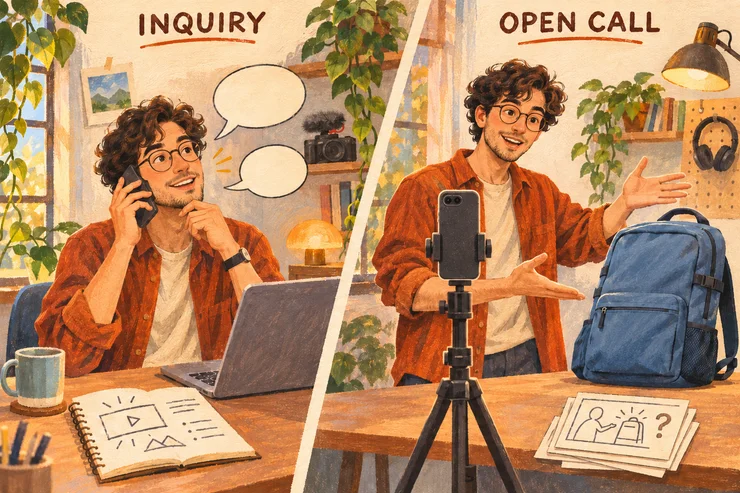
But before you pick up a camera, check what kind of opportunity you’ve received. A direct inquiry starts a conversation about a deal. An Open Call asks you to submit a finished video for the brand to consider. With Open Call, you can do the filming and editing and still earn nothing if your video isn’t selected.
Here’s what you can set up, what happens when an opportunity arrives, and who pays you.
Check what your channel can access
Open YouTube Studio → Earn → Creator Partnerships. The requirements include age 18+, YouTube Partner Program (YPP) membership, a supported country, no active Community Guidelines strikes and compliance with monetization policies. If the tab is missing, check those conditions, including the linked country list.
YPP creators can still use YouTube’s desktop Media Kit even without the Partnerships tab. It gives you a downloadable report to send with your own pitches. Open Call has narrower requirements, explained below.
Help brands see why your channel fits
A brand needs more than your subscriber count. Who watches your videos, what do they come to you for, and would they be interested in this product?
Make a relevant Media Kit
On a computer, go to Studio → Earn → Creators Support and Tools → Download your Media Kit. You can also open it from the Media Kit card in Creator Partnerships.
The report includes channel and audience information, video examples and estimated audience-interest categories. You can edit or hide cards, choose relevant videos and categories, then download a PDF.
Suppose you make travel videos and want to approach a luggage company. Your carry-on packing guide may be a better example to include than a popular restaurant vlog. Pair it with relevant audience information so the brand can see the connection between its product and what people watch you for. Send the kit with a specific video idea; the numbers support your pitch.
Decide what to share for discovery
Eligible channels are discoverable without turning on insights sharing. The optional channel insights sharing setting gives prospective partners more information through Google’s approved tools: channel statistics, audience demographics and, where applicable, Shopping results.
For example, a luggage company selling in Europe can check whether your travel channel reaches viewers who could buy its products. That is more useful for judging fit than subscriber count alone.
The setting is off by default and available to YPP creators globally, except Official Artist Channels. On desktop, find it under Studio → Settings → Channel → Advanced settings → Channel insights sharing. Review what it shares and enable it if you’re comfortable making those figures available to prospective partners.
Sharing these channel figures does not give a brand permission to run your videos as ads. That requires separate video-level access, covered later.
A direct inquiry starts a negotiation
In the Partnerships tab, set desired rates for long-form videos and Shorts. Add a manager’s email if they should receive inquiries too.
A direct inquiry appears in that tab, with Studio and email notifications. Its earnings figure comes from the advertiser; it isn’t a final offer.
Select Interested to share your contact details. You negotiate and sign with the brand, which pays you directly. Studio introduces the opportunity; the payment agreement is between you and the brand.
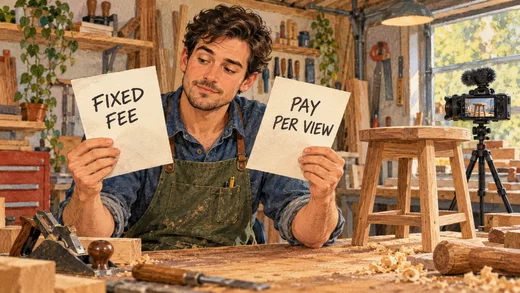
Before agreeing to a price, work out what the sponsor expects. “A product demonstration” could mean a segment in a video you already plan to make, or a separate tutorial. The brand might also want to use your footage in ads. Those requests change the job and belong in the fee discussion.
Clarify the brief, quote for the agreed work, and get the fee, dates, payment and permitted uses into the agreement before filming. Then deliver the draft, handle the agreed feedback and publish on schedule. Set an invoice date and payment deadline so you both know when the money is due. Our guide to responding to a sponsorship offer helps with the first reply.
Open Call asks you to make the video before selection
Open Call is invitation-only. YouTube’s requirements include US, UK or India residence, YPP membership, active AdSense, 500–500,000 subscribers and a Short posted in the last 30 days. Your channel must post original, user-generated content.
Invitations arrive through Studio notifications and, if enabled, email. In the Studio app, find available briefs under Earn → Creator Partnerships → Open Call.
Read the requirements, fee and deadline. To submit, make a vertical Short, upload it as unlisted, then select it for the project in the Studio mobile app. The brand reviews the video and decides whether to select it.
Check where your video will appear
The brief distinguishes two project types:
- Non-organic, or UGC: the selected video stays unlisted and the brand uses it in ads.
- Organic: the selected video is scheduled to publish publicly on your channel on the brand’s campaign date. You can override the posting schedule.
An unlisted submission therefore isn’t necessarily a video that stays off your public channel. Check the project type before deciding what you’d be happy to make.
Understand what earns the payment
Under the Open Call terms, YouTube pays only if the brand selects your video. It pays the project fee through your linked AdSense account within 60 days of selection. It doesn’t reimburse the cost of making unsuccessful submissions.
Selection also commits the video for 180 days: it must stay on YouTube without edits. Organic projects stay public, and the brand receives ad-use rights for both project types. The terms allow a different public-posting or ad-use period if you and the brand agree. Check those commitments alongside the fee before submitting.
The practical question is how much work you’re willing to do before you know whether you’ll be paid. A brief for a product you already use, filmed with equipment you own, can be a manageable experiment. Buying the product and traveling to a location just to enter raises the cost of an unsuccessful submission considerably.
Choose a brief that suits your skills, your available production time and the audience who may see the finished video. If you need a fee agreed before doing the work, put your effort into pitching and negotiating a sponsorship instead.
Agree on ad use before sharing partner access
Once you’ve made sponsored content, the brand may ask for brand partner access to that video. This lets it see the video’s organic and paid performance and use it in creator partnerships boost campaigns. “Boost” means the brand pays to run your video as an ad.
This connects a finished video to the brand’s advertising account. It can apply to a deal you found yourself, as well as one that started through Creator Partnerships. Unlike the Partnerships tab, brand-initiated access requests can reach creators outside YPP too.
For a separately negotiated sponsorship, agree on whether the brand can advertise with your video, for how long and for what price before granting access. Requests arrive through email or Studio notifications, where you can review and accept or decline them. YPP creators can also initiate access by finding the brand or generating a code. For Open Call, review the ad use already included in the project before submitting.
Before publishing sponsored content, select YouTube’s paid-promotion setting and make the sponsorship clear to viewers. Open Call submissions need that setting too.
Your next step
Start with the Earn page and the tools available to your channel. Prepare your kit, check any relevant inquiries or briefs, and keep approaching brands yourself. If Studio is quiet, our guide to finding YouTube sponsors can help you build a shortlist and send a useful first pitch.